Every feature, and how it works

Everything below is in one login and one plan. Real screens come from our sandbox, which uses sample data; you can try it yourself without signing up.

One login

Illustration with made-up data

One login for everything

With other tools you sign in to one place for leads and another for the CRM. You export a list, map its columns and import it, then keep the script in a separate document. In SurplusNorth, leads, CRM, dialer, script, texting, agreements, claims and recovery are one app with one password.

How it works

  1. Sign in once.
  2. Every screen is in the left menu: Vetted Leads, CRM, Interested, Claims, Recovery, Handbooks, Follow-Ups, Contracts, Calls & Messages, Golden Rules and Learn.
  3. A lead moves from the list to the CRM to a signed case without leaving the app.
Leads

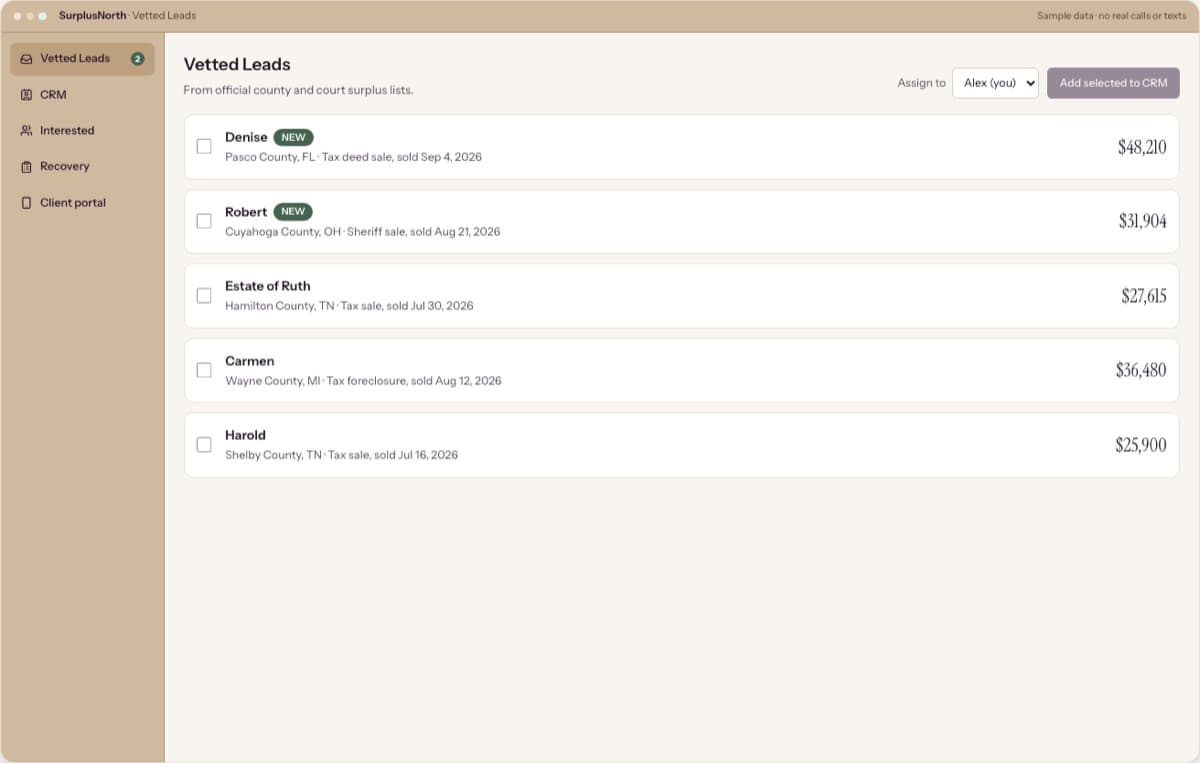
Vetted Leads list with NEW badges, counties, sale dates and surplus amounts
Sandbox screen with sample data

Vetted Leads

Surplus leads from the lists counties and courts publish after tax and foreclosure sales. A lead is delivered only with a usable owner name, a searchable property address, surplus over $25,000 and an active phone that isn’t on Do Not Call.

How it works

  1. We pick up new county and court lists and check each record.
  2. New leads show a NEW badge for 24 hours.
  3. Each lead shows the owner, county, sale type, sale date, amount and claim deadline, with a link to the official source.
  4. Heirs and co-owners sit on the owner’s lead, not as extra leads.
  5. Filter by state, county, amount, not attempted yet, or time left to claim. A surplus map shows the money by county.
  6. Leads past their deadline, already claimed, or where a recovery fee isn’t allowed leave the list on their own.
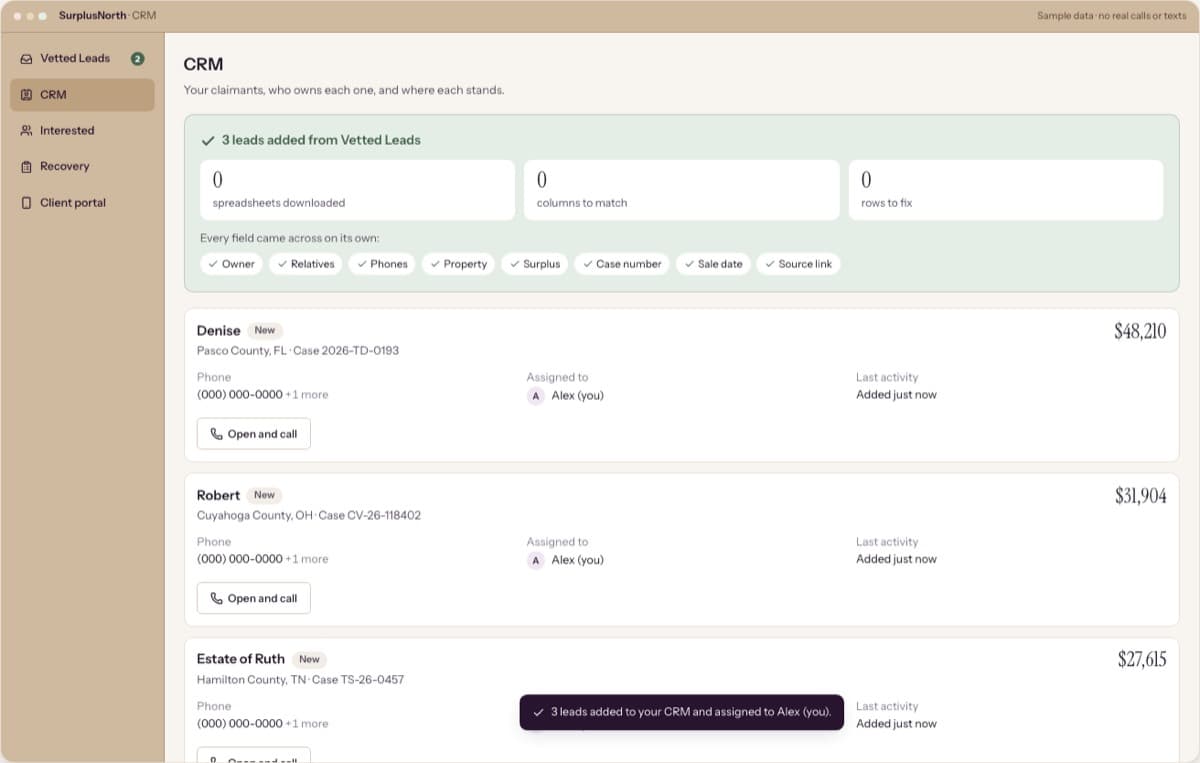
CRM after adding leads: 0 spreadsheets downloaded, 0 columns to match, 0 rows to fix
Sandbox screen with sample data

Add to CRM in one click. No mapping.

Tick the leads you want and press Add to CRM. Owner, relatives, phones, property, surplus, case number, sale date and source link all come across on their own.

How it works

  1. Select leads on Vetted Leads.
  2. Choose who they’re assigned to, in the same step.
  3. Press Add to CRM: no spreadsheet to download, no columns to match, no rows to fix.
Illustration with made-up data

Import your own lists

Upload a county list or a skip-trace file. We read it for you, so there’s no column-matching step.

How it works

  1. Drop the CSV on the Import page.
  2. We find names, addresses, amounts, phones, phone types, DNC flags, relatives, age and deceased status.
  3. Relatives attach to the owner. They never become separate leads.
  4. You see a review before anything is added.
  5. Mark rows your team already called as attempted.
  6. The same person on the same case is merged, not duplicated.

Add a lead by hand. Type in one owner and case any time; it joins the CRM like any other lead.

CRM

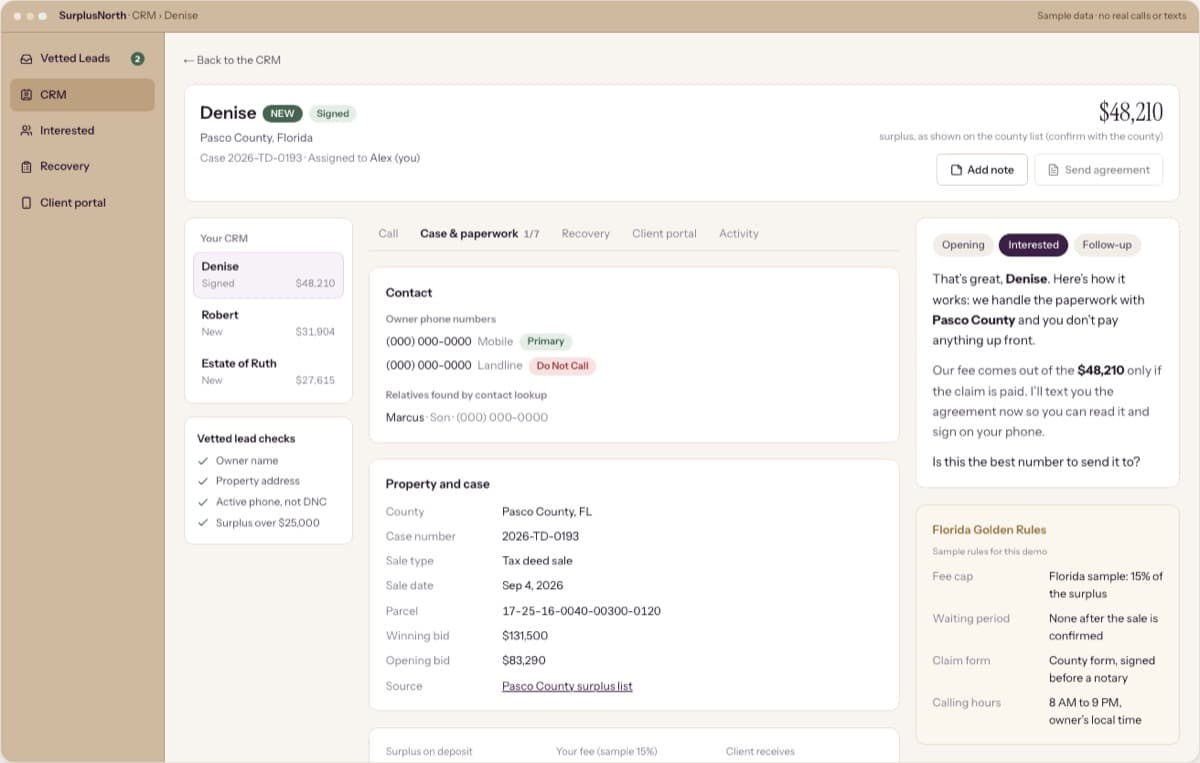
Lead page with owner phones, a relative, and property and case details
Sandbox screen with sample data

One page for each person

Everything about a claimant on one screen: contacts, relatives, property, case, surplus, your fee and what the client receives.

How it works

  1. Phones show mobile or landline, Primary and Do Not Call.
  2. Mark a number good, wrong, disconnected or removed. That decision stays, even after new imports.
  3. Relatives found by contact lookup are listed with their phones.
  4. A paperwork checklist ticks off what the claim needs as it comes in.
  5. Pinned notes stay on top, and a strip shows today’s numbers.
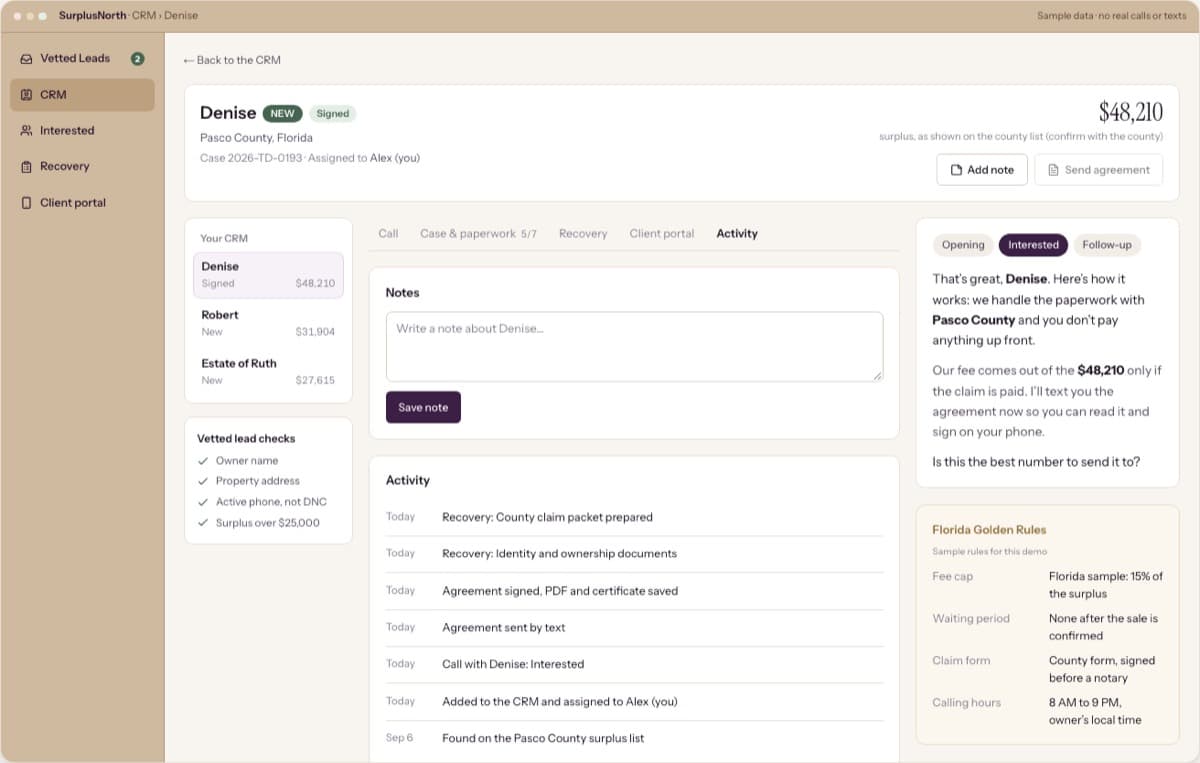
Activity timeline: found on the county list, added to the CRM, call, agreement sent and signed, recovery steps
Sandbox screen with sample data

Notes and the full history

Every call, text, note, agreement and recovery step is on the lead’s timeline, by day.

How it works

  1. Write a note on the lead and pin the important ones.
  2. Calls, outcomes, texts and signatures are logged on their own.
  3. Anyone who opens the lead sees the whole story.

Search. Find any person, case or phone number from anywhere in the app.

Calling and scripts

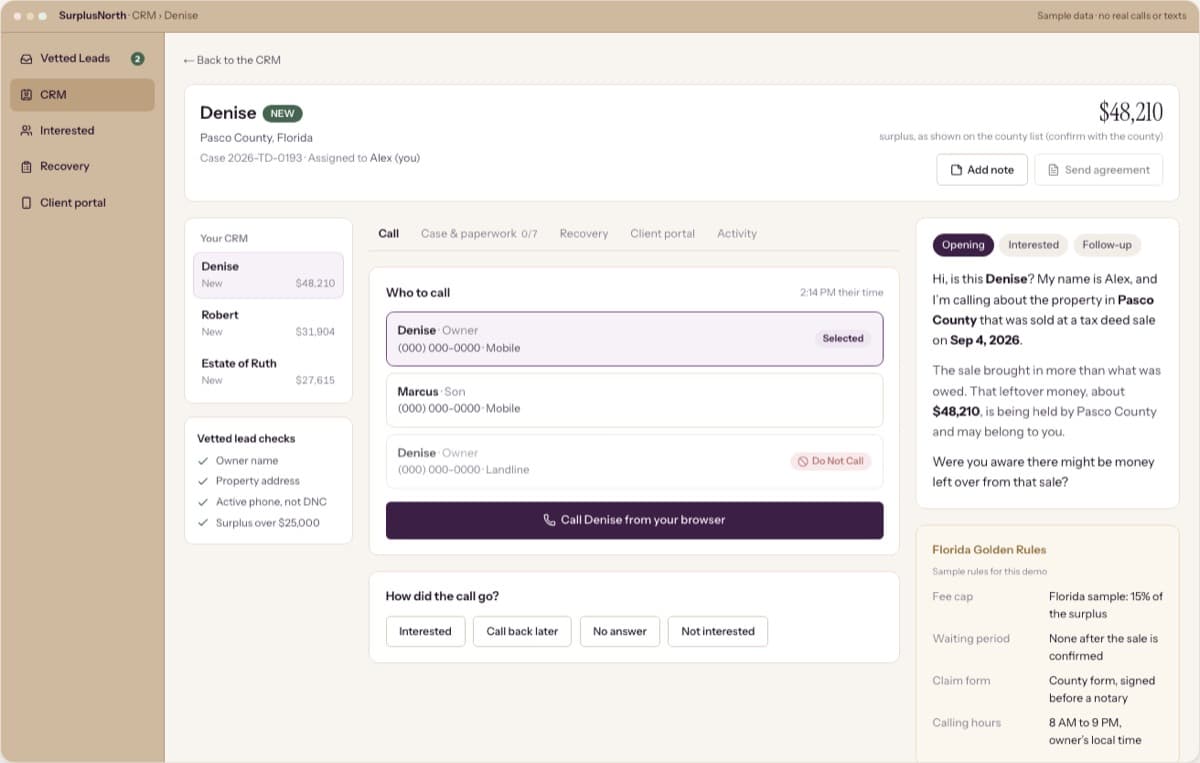
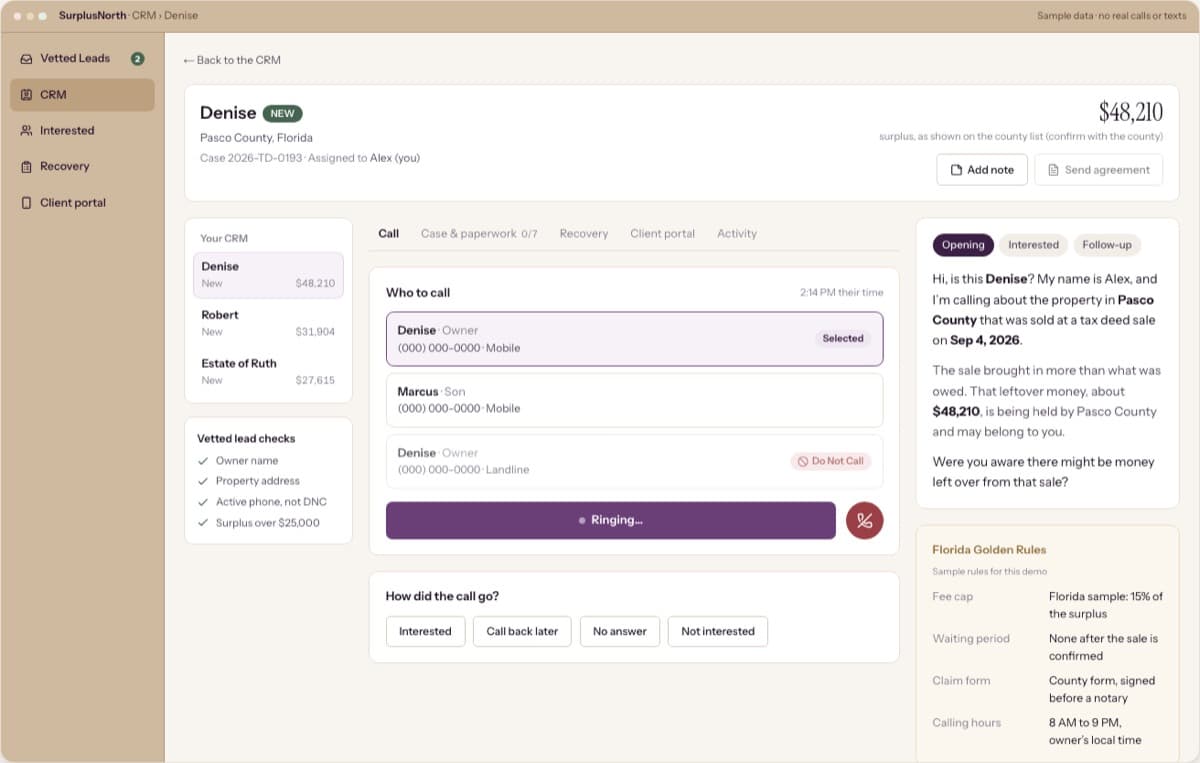
Call screen: who to call, the call button, a filled-in opening script and the state’s Golden Rules
Sandbox screen with sample data

Script space right beside the dialer

The script sits next to the call button, already filled in with the person’s name, county, sale date and amount. No second tab, no document to find.

How it works

  1. Pick the script you need: Opening, Interested, Follow-up, Not interested, or difficult calls.
  2. Names, property, amount and deadline fill themselves in.
  3. Your team can rewrite any script, and everyone gets the new one.
  4. A confirm checklist shows the facts to read back to the owner.
A browser call ringing, with call result buttons below
Sandbox screen with sample data

Call from the browser

Call the owner or a relative with one click. No phone and no separate dialer.

How it works

  1. Choose who to call: owner or relative, mobile or landline.
  2. You see the person’s local time and whether it’s inside calling hours.
  3. Calls to numbers on the Do Not Call lists we load are blocked.
  4. When the call ends, pick the result in one click (number keys work too).
  5. Calling lists: select leads, start calling, or save the list for later. The next person comes up on their own.
  6. Call recording is optional.
Illustration with made-up data

Know who’s calling back

Owners call back days later. Their lead opens before you answer.

How it works

  1. A call comes in on your number.
  2. SurplusNorth matches the number to the lead or relative.
  3. You see the name, surplus, county, case, agent and last note, then answer in the browser.

Follow-ups

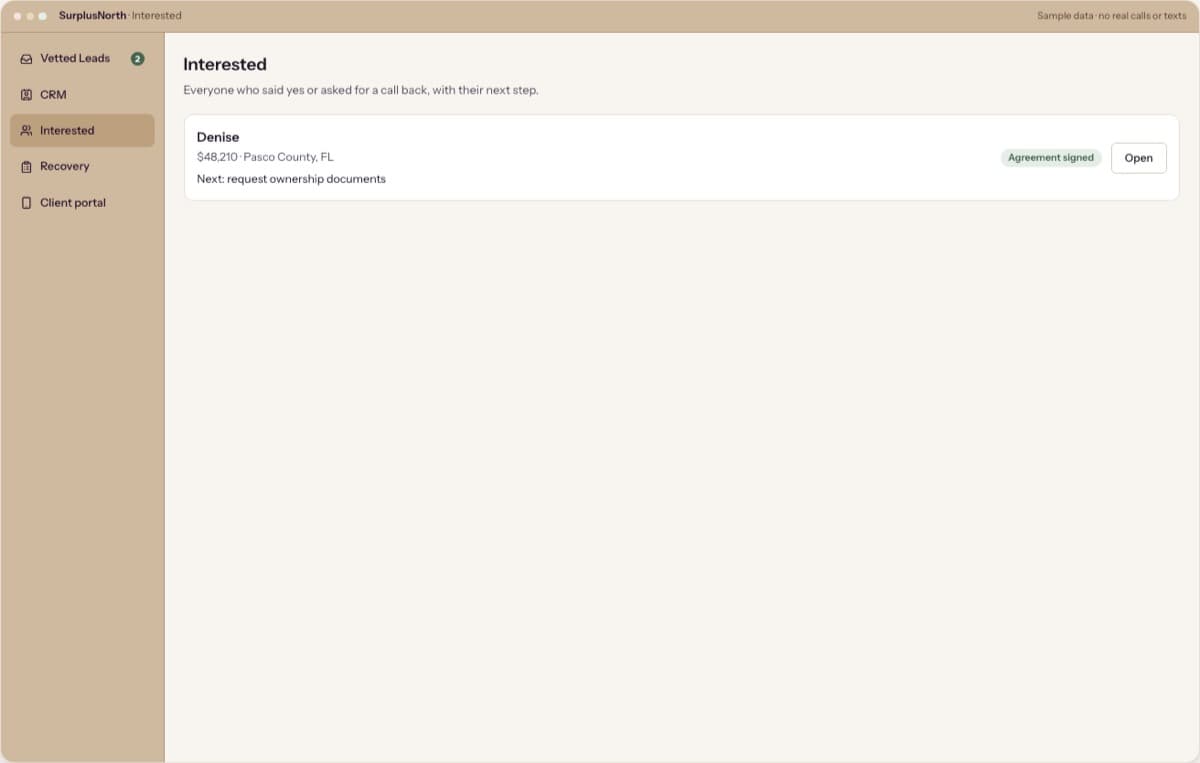
Interested list showing a signed lead and its next step
Sandbox screen with sample data

Interested list

Everyone who said yes or asked for a call back, with their next step and agreement status.

How it works

  1. Mark a call Interested or Call back later.
  2. The person joins the Interested list with their next step.
  3. Send the agreement right from the list.
Illustration with made-up data

Follow-Ups

Never lose a call back. Whoever schedules a follow-up sees it on their own page.

How it works

  1. Pick a date and time on the lead.
  2. At that time the person comes back into your work queue.
  3. Add scheduled text follow-ups, personalized with their name and details, sent at their local time.

Texting

Illustration with made-up data

Calls & Messages inbox

Every text thread and call in one place for the team.

How it works

  1. Text from the lead or from the inbox.
  2. Translate an incoming Spanish text with one tap.
  3. Send a PDF and it goes as page pictures. PNG and JPEG pictures go as they are.
  4. Long texts are split into several messages.
  5. STOP is honored at once and the number is marked opted out.

Texting registration inside the app. Carrier registration (10DLC), a hosted opt-in page for your company, and consent recorded before the first text. Registration and campaign upkeep are included.

Agreements and Spanish

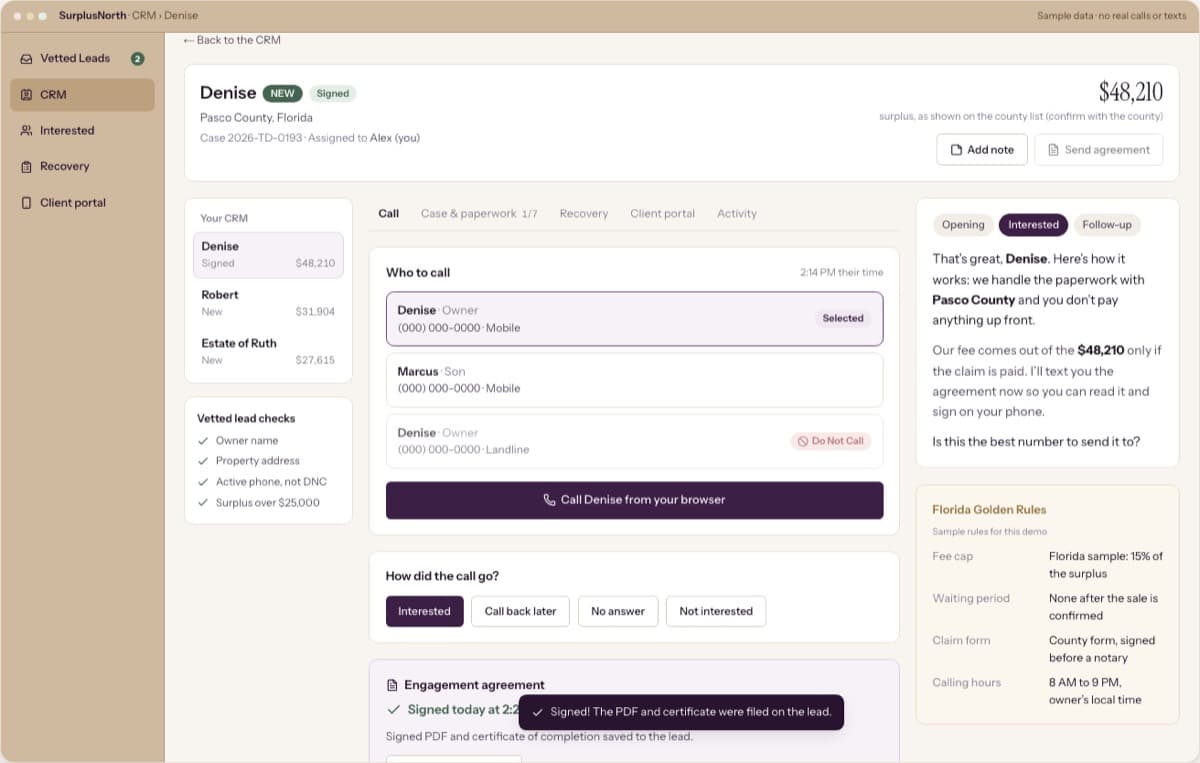
Lead marked Signed, with the signed PDF and certificate saved
Sandbox screen with sample data

E-signing built in

Send the agreement while you’re still on the call. The client signs on their phone.

How it works

  1. Use your own agreement PDF, or our engagement letter with your letterhead.
  2. Press Send agreement.
  3. The client reviews and signs on their phone.
  4. The signed PDF and a certificate of completion are saved on the lead.
  5. Every agreement and its status is on the Contracts page. No separate e-signature bill.
Illustration with made-up data

English or Spanish

Your client chooses the language. Spanish is written for Latin American clients.

How it works

  1. Send one agreement. The client picks English or Español on the signing page.
  2. The client portal and texting pages are in Spanish too.
  3. Your team translates incoming Spanish texts with one tap.

Claims

Illustration with made-up data

Signed leads are yours alone

Until an owner signs with you, Vetted Leads are shared by every subscriber. When the owner signs your agreement, the lead is claimed for your company and leaves every other company’s list.

How it works

  1. The agreement is signed: the lead is claimed and shows as signed on the lead.
  2. When the surplus is paid, record who was paid and the fee.
  3. A payout check flags money paid to someone other than the client, or a fee above the signed agreement.

Recovery and client portal

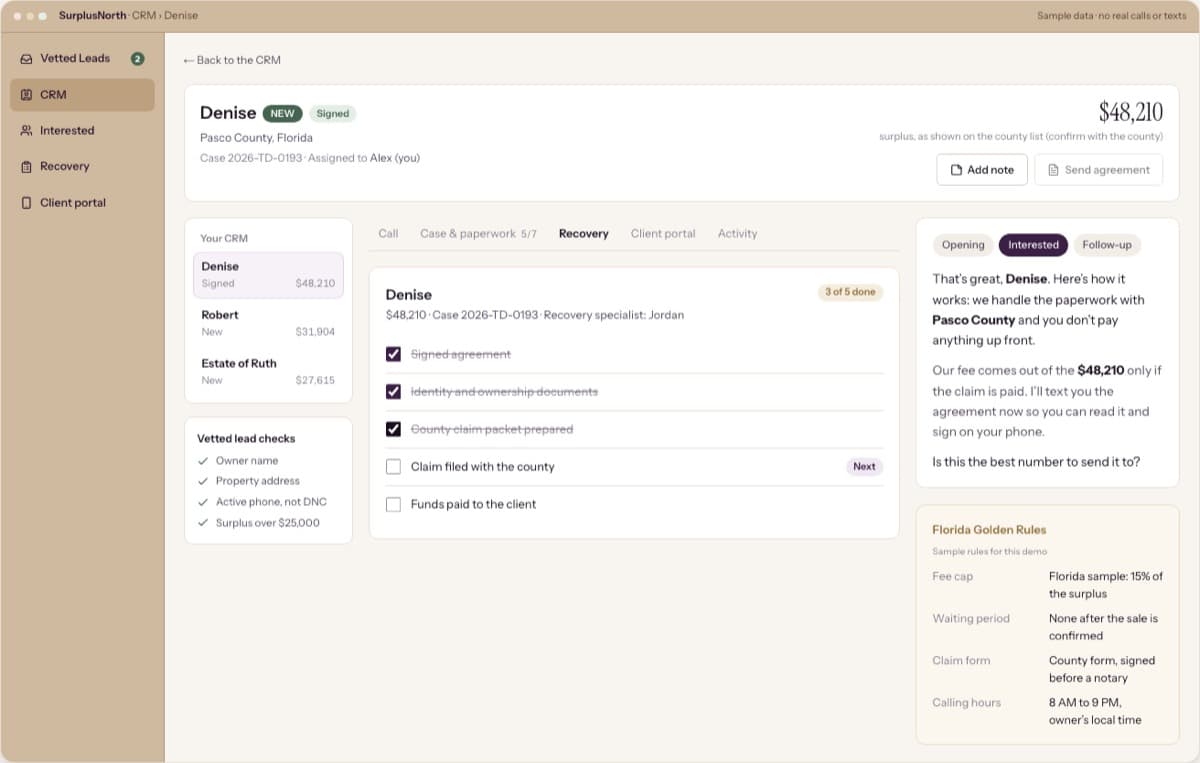
Recovery checklist with three of five steps done
Sandbox screen with sample data

Recovery

A step-by-step plan for every signed case, so nothing stalls between signing and payout.

How it works

  1. Signing starts the case’s steps, from the claim packet to filing to payout.
  2. Each step has an owner and a deadline.
  3. Mark blockers and steps that wait on other steps.
  4. Case notes sit beside the steps.
  5. Your team can edit the steps for each case.
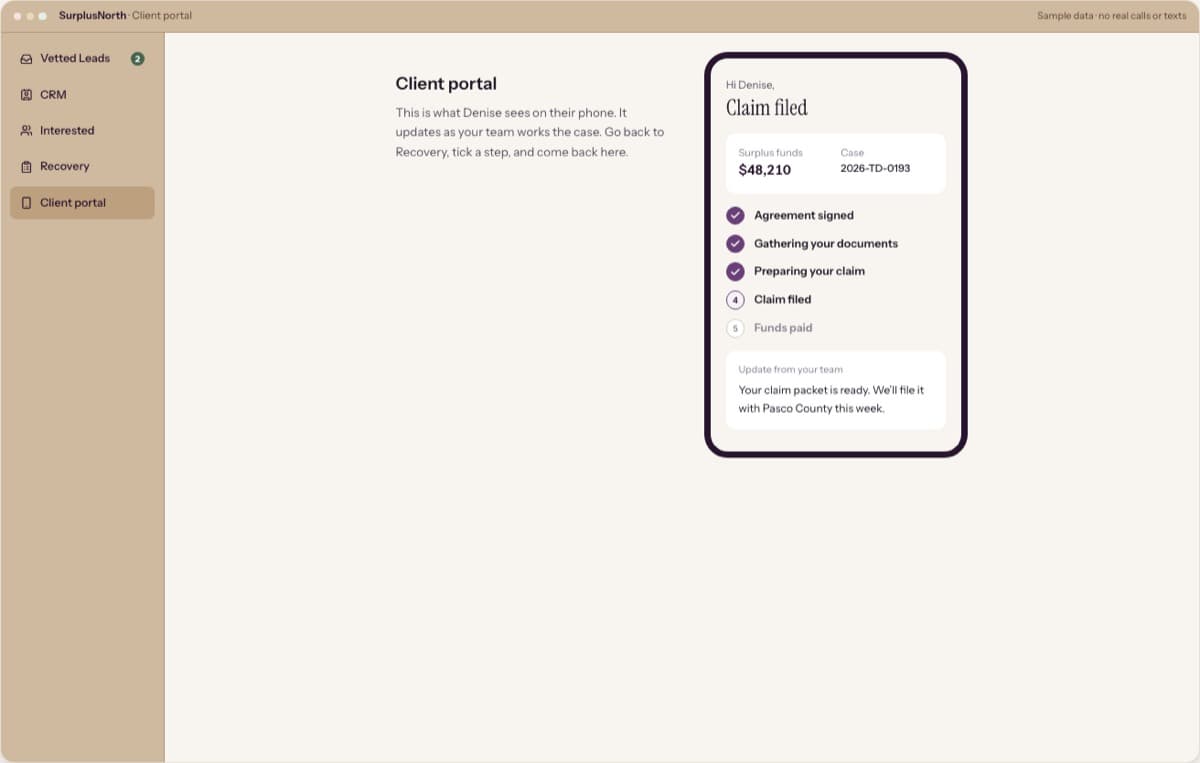
Client portal on a phone showing claim steps and an update from the team
Sandbox screen with sample data

Client portal

Each signed client gets a private page on their phone. Fewer “any news?” calls.

How it works

  1. Share the private link. There’s no password to remember.
  2. It shows their surplus, case, each claim step, your updates and their signed agreement.
  3. Steps move forward as your team ticks off Recovery.
  4. Add “Our agreement, in plain words” lines once, and every client sees them.
  5. In English or Spanish. With white label, it shows your name, logo and colors.

Handbooks

Illustration with made-up data

Case Handbooks

A short written summary of each case, made from its real calls, texts and voicemails.

How it works

  1. A case gets a handbook once there’s been a real conversation, or the agreement is signed.
  2. It’s written from the actual calls, texts and voicemails.
  3. A recovery teammate reads it and knows the case in a minute, without replaying anything.

Golden Rules

Illustration with made-up data

State Golden Rules beside every lead

The rules for that state and sale type sit next to your call, with legal citations.

How it works

  1. Open any lead: the rules panel shows fee caps, waiting periods, notary and attorney needs, claim deadlines and calling hours.
  2. Leads where a recovery fee isn’t allowed are kept out of your list.
  3. Add your company’s own rules; they apply right away.

Team and admin

Dashboard

Your pipeline, today’s work and a holiday calendar.

Teams up to 20

5 seats plus the owner; extra seats $15 a month each.

Roles and permissions

Owners see the whole pipeline; agents see their own work.

Assign leads

Assign when you add leads to the CRM, or later. Agents can pick up unassigned leads.

Time clock

Clock in and out, breaks, and your break policy.

Notifications

A bell when a lead is assigned to you, a client texts back, a voicemail comes in or an agreement is signed.

Two-factor sign-in

Extra protection for every account.

White label

Your name, logo and colors on signing pages and the client portal.

Help and support

Open a ticket inside the app.

Phone numbers

One local number included; see every number and who it rings for on the Numbers page.

Prepaid credit

Add from $20 and see every call and text charge.

Learn

Short guides, quick checks after each guide, and a glossary of county-list words.

All of this in one login, for $399 a month.

Want help with the work? Managed Recovery and Full Service add a recovery specialist and a caller.